
Handwriting is fast to write and slow to find. NoteFun closes that gap: it recognises the words in your ink on the iPad itself, using Apple's on-device text recognition, and keeps them ready for search.
Step by step
- Open the notebook. Search looks through the notebook you have open, so start there.
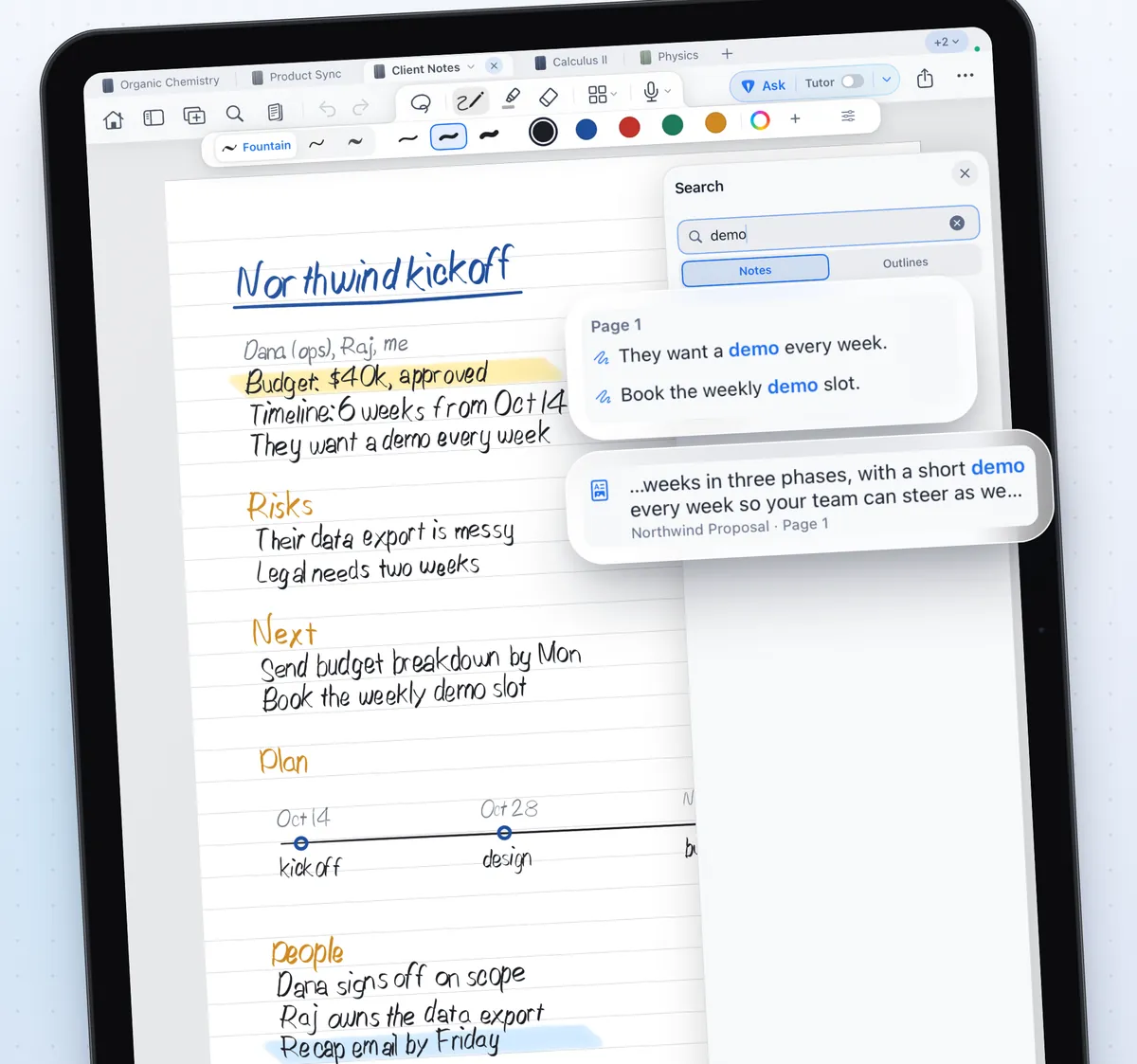
- Tap Search. Tap Search in the toolbar to open the search panel.
- Type a word. Type a word or a short phrase. Matches come from your handwriting and from the text of any PDF pages.
- Jump to the page. Tap a result to go straight to the page where it appears.
How handwriting search works
- On your iPad. Handwriting is read on the device. Your notes are not sent anywhere for search.
- Fresh ink takes a moment. A line you have just written becomes searchable shortly after.
- PDFs are included. Imported PDFs bring their own text, so search covers slides and readings as well as your notes.
- Recordings too. Audio you record in a notebook is transcribed on your iPad, so it can be searched alongside your notes.
Tips for notes that are easy to find
- Give each page a clear handwritten title. Titles are what you will search for later.
- Add sections to the Outline so long notebooks stay easy to scan.
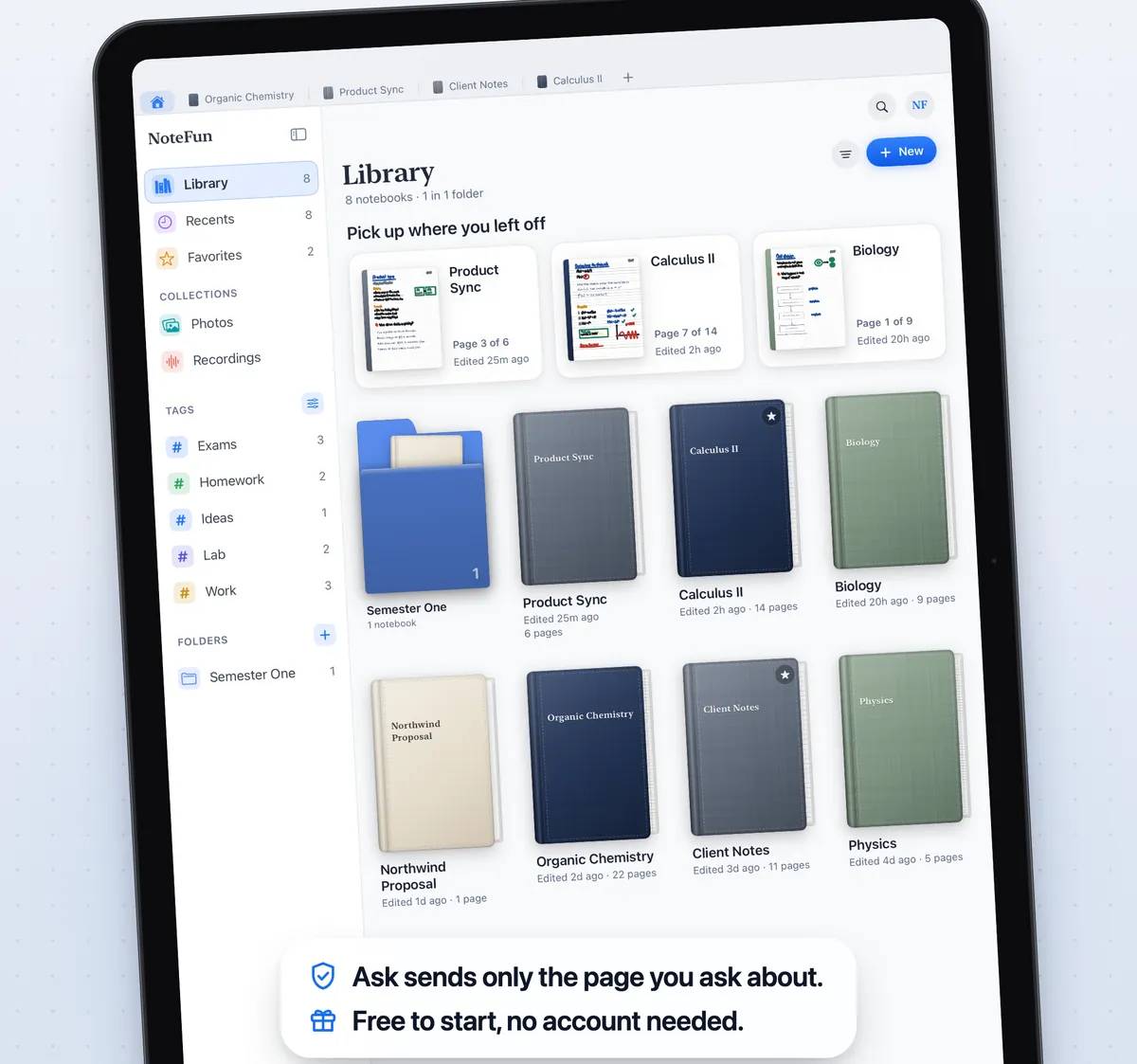
- Use folders, tags and covers in the Library to keep subjects apart, and star the notebooks you use most.
- If a search finds nothing, try a shorter word or check the spelling.
More from the notebook
Search is one part of a notebook built for handwriting. You can also mark up PDFs and slides, pick graph, dotted or ruled paper, and ask the page a question when you are stuck.